Code Link
A web link to a code, its rewards, and instructions on how to use it. The code can be an affiliate, referral, or promo code.
Code Link provides a convenient way to onboard new users and can be used across all code types supported by the platform.
- Affiliate code — affiliates share a link to their campaign code with their audience, streamlining the onboarding.
- Referral code — users share a link to their referral code with each other for faster onboarding.
- Promo code — share a link to the promo code to attract new users to your app.
Format
A code link has the following format: https://<subdomain>.wwk.link/<code>.
Example
An example of the Code Link page for the Usage app, available at https://usage.wwk.link/NMB231.
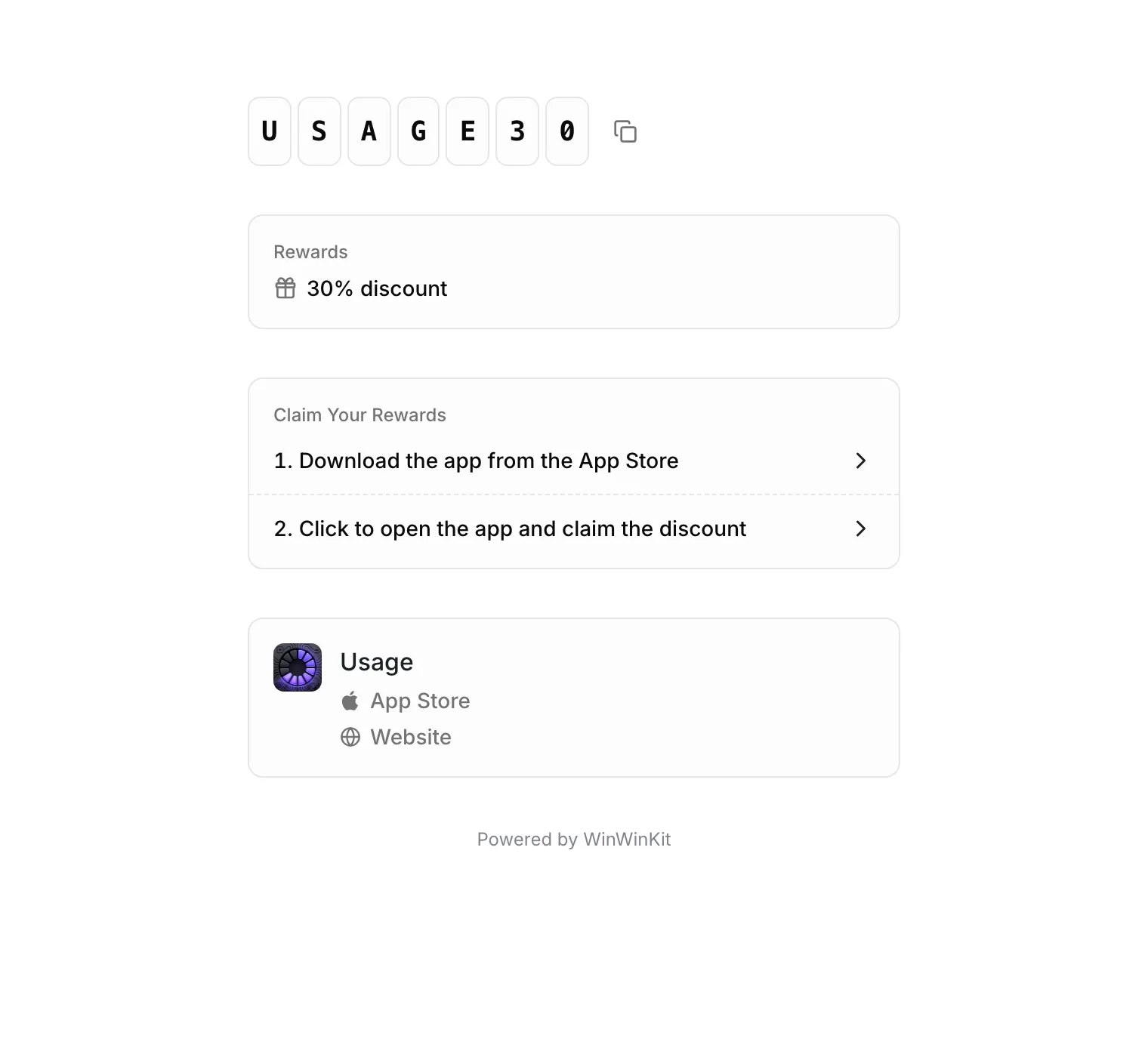
Code
The code is shown at the top of the page. Tapping it copies the code, ready to paste in your app.
Rewards
The Rewards card shows what the user gets for claiming the code. The rewards come from where the code comes from:
- Affiliate code — the User Rewards of the affiliate’s group, or the affiliate’s own custom rewards.
- Promo code — the Rewards of the promo code.
- Referral code — the rewards for invited users of the referral program.
A reward activated on conversion reads once you become a premium user, as the user gets it only after becoming premium. A code without rewards shows no Rewards card.
Learn more about Rewards.
Claim Your Rewards
The steps the user follows to claim the rewards in your app, for the platform they’re on. A step with a link opens it when tapped — for example, the App Store, or your app with the code. Learn how to configure the steps.
App
The bottom of the page shows the app the code is for, with its icon, name, and links to the App Store, Google Play, and your website. Set them up in Settings -> General. While the project is in sandbox mode, a Sandbox badge is shown next to its name.
For an affiliate code, the affiliate who shared it is shown above the app, with their name, photo, and social profiles.
Preview
Navigate to Pages -> Code Link to preview and verify the presentation of the page.
Use Code for Preview to see the page with one of your codes and its rewards, or with the sample code XYZ123 and sample rewards. The preview shows the steps of the platform tab selected in Claim Your Rewards.
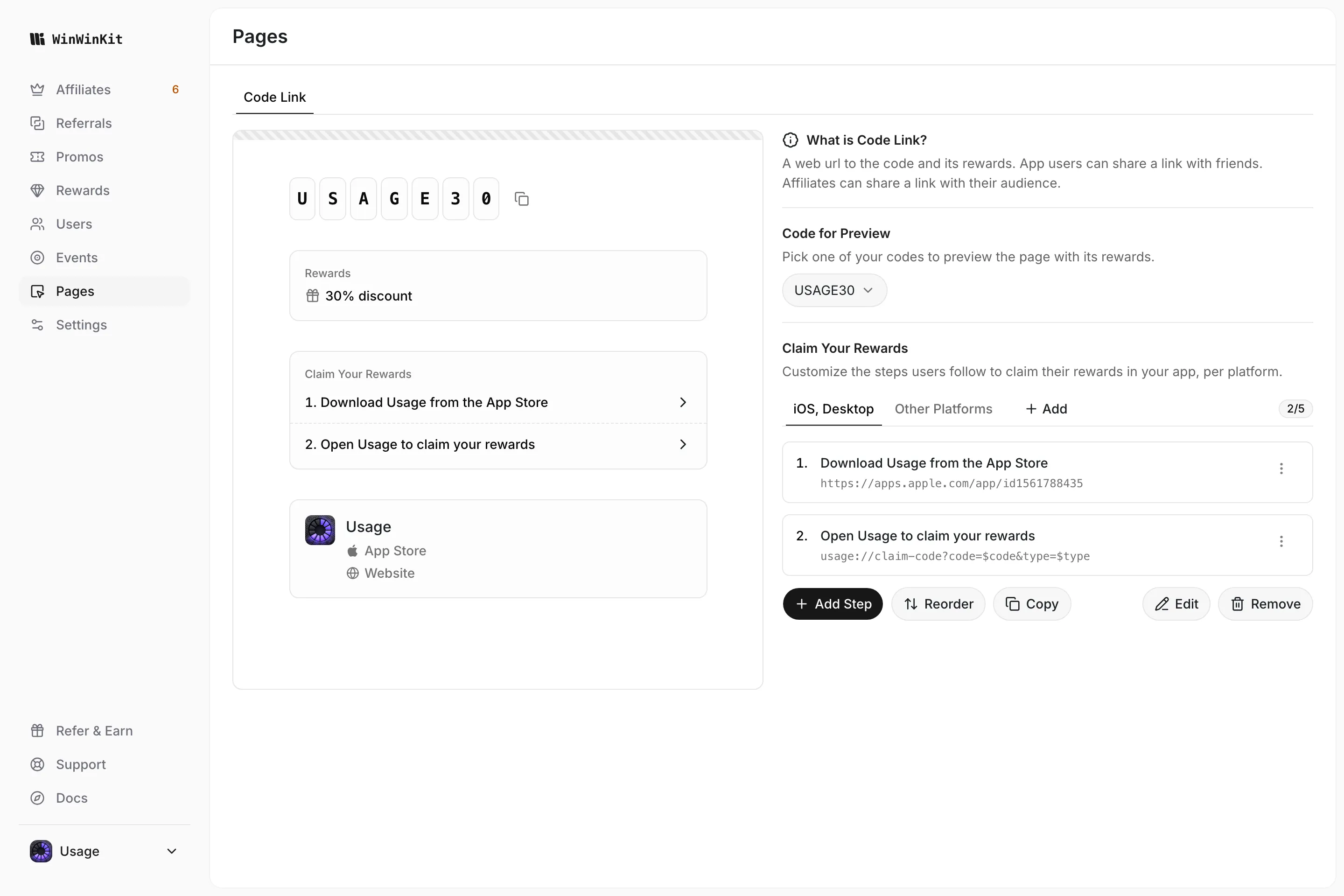
Claim Your Rewards
Navigate to Pages -> Code Link -> Claim Your Rewards to configure the steps.
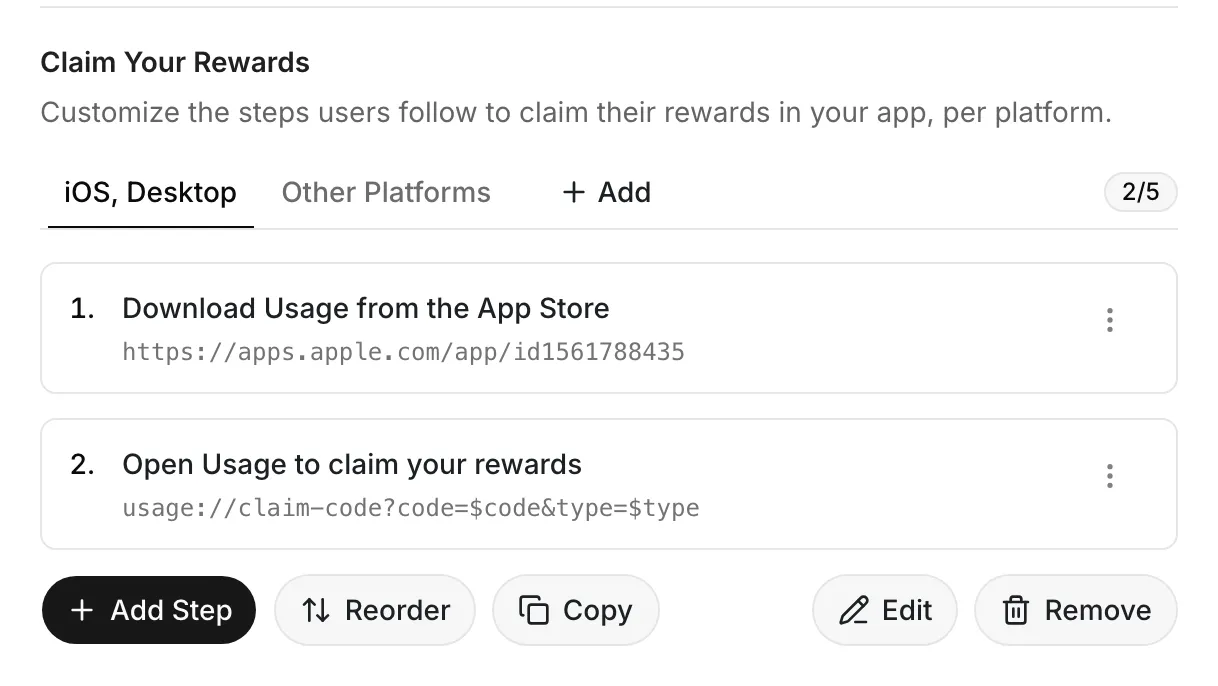
Platforms
Steps are set up per platform, each in its own tab:
- iOS — iPhone, iPad, and iPod.
- Android — Android phones and tablets.
- Desktop — Mac, Windows, Linux, and ChromeOS computers.
- Other Platforms — everyone else, and every platform without steps of its own.
Users are shown the steps of the platform they visit the page from, or the steps of Other Platforms when their platform has none. Other Platforms is always there — while it’s the only tab, it’s shown as All Platforms, as every user gets its steps.
Click Add next to the tabs to set up steps for one or more platforms. Platforms selected together share the same steps — for example, iOS and Desktop for an app available on the App Store for iPhone and Mac.
Steps
Each platform can have up to 5 steps, shown in order. Click Add Step to add one:
- Title — what the user should do, for example, “Download the app”.
- Link — optional. A step with a link opens it when tapped; a step without one is shown as an instruction.
Write $code or $type in a step’s title or link to receive the code value,
or its type — affiliate, promo, or referral. For example,
myapp://claim?code=$code&type=$type.
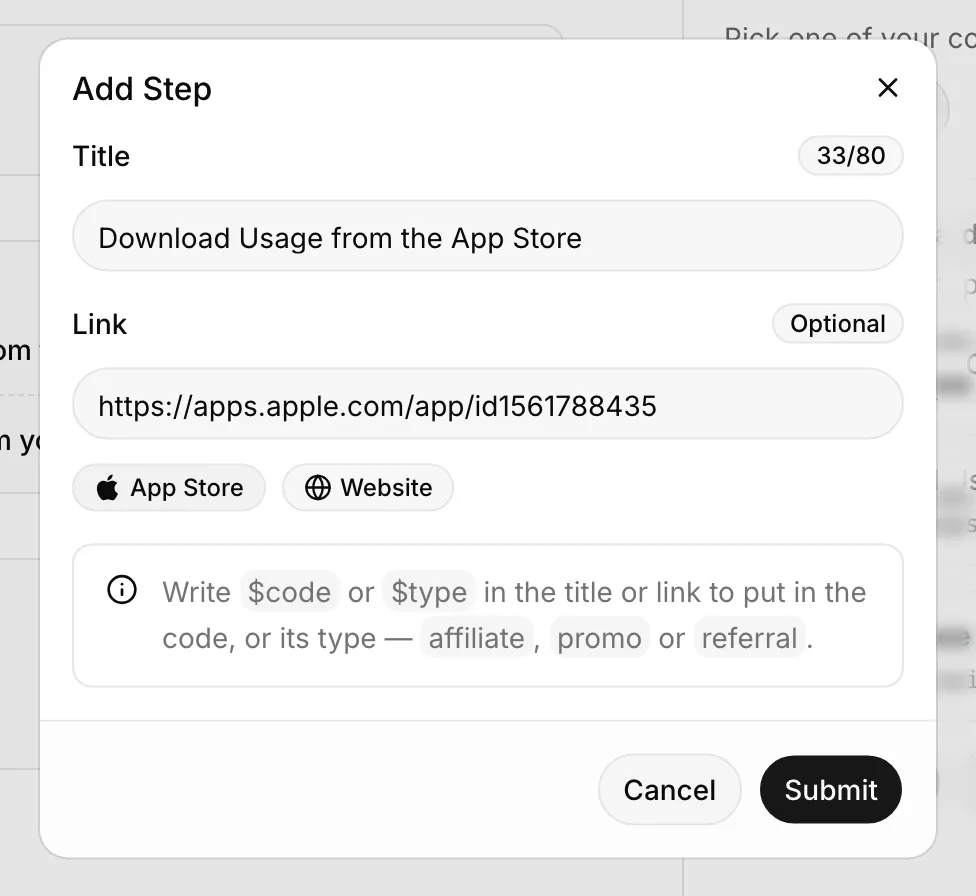
Managing Steps
- Reorder — drag the steps into a new order.
- Copy — copy the steps to other platforms. Platforms that already have steps get the copied ones instead.
- Edit — change the platforms that share the steps.
- Remove — remove the platforms and their steps. Users on them are then shown the steps of Other Platforms.
- Reset — remove all steps of Other Platforms.
Deep Links
A step’s link can be a deep link that opens your app directly from the Code Link page, such as myapp://claim?code=$code.
You are responsible for setting up the deep links handling in your app. When receiving a deep link, you can present a view, claim the received code, or implement any other functionality that suits your needs.
Access
Affiliate Code
The affiliate code link is available on the dashboard for active and archived campaigns.
Referral Code
The referral code link value is available on the user object via SDKs and REST API.
Swift SDK
The Code Link value is available on the User object as the referralCodeLink property.
Get it from the singleton instance:
let referralCodeLink = Referrals.shared.user?.referralCodeLinkOr in a SwiftUI view from the observable object:
@State var referralsObservableObject = Referrals.shared.observableObject

...

Text(self.referralsObservableObject.user?.referralCodeLink ?? "-")
Learn more about Swift SDK.
TypeScript SDK
The Code Link value is available on the user object as the referral_code_link property.
const user = await winwinkit.fetchUser({ appUserId: "<app-user-id>" });
const referralCodeLink = user?.referral_code_link;
REST API
The Code Link value is part of the User object:
{
  "data": {
    "user": {
      "app_user_id": "821fae4b5-1a2d-4c1e-9152-5297086a161c",
      "referral_code": "XYZ123",
      "referral_code_link": "https://example.wwk.link/XYZ123",
      ...
    }
  }
}
Promo Code
The promo code link can be constructed by following the usual format https://<subdomain>.wwk.link/<code>.